
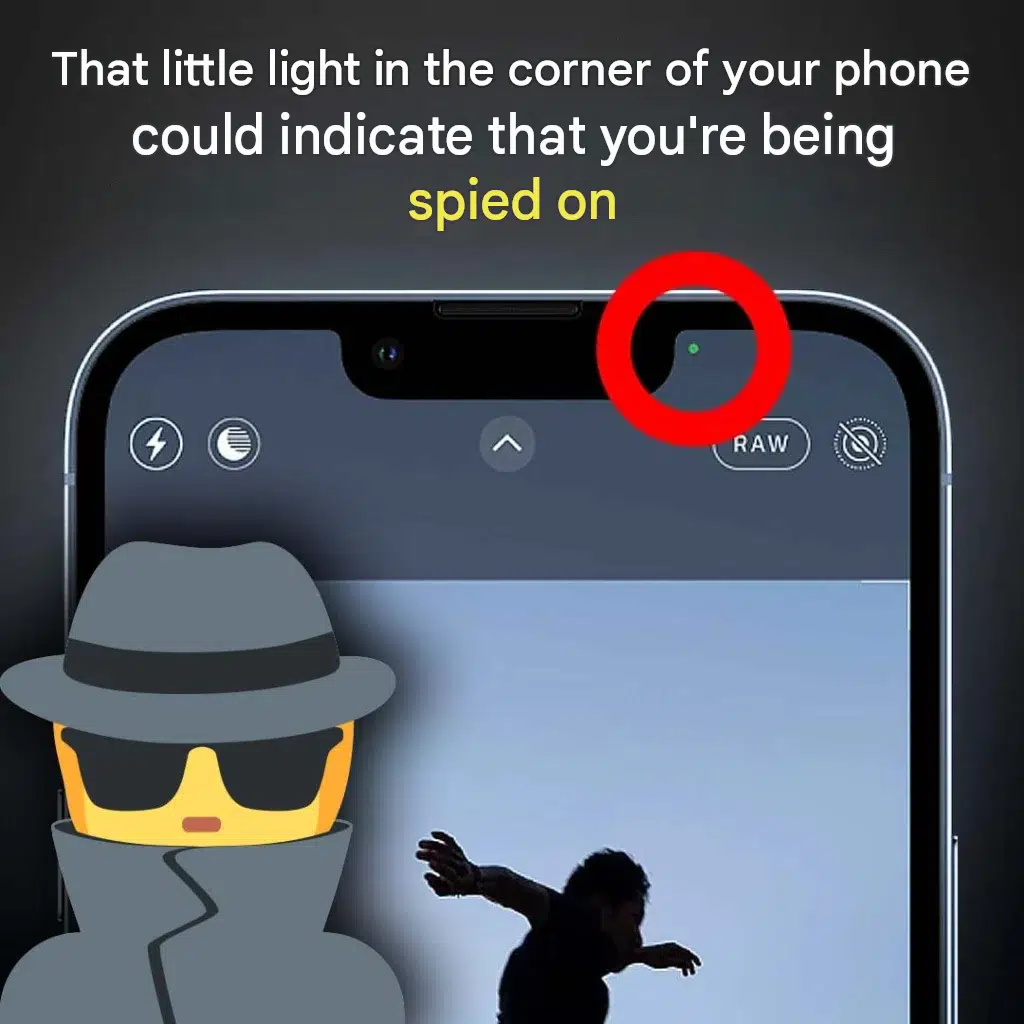
In the modern digital era, mobile phones have become indispensable companions, keeping us connected, entertained, and informed. However, as smartphones grow smarter and more integrated into our private lives, concerns regarding digital surveillance, data privacy, and unauthorized monitoring have risen correspondingly. Many smartphone users occasionally notice a small, colored light—often green or orange—glowing quietly in the corner of their screen or near the camera notch, leading to questions about whether someone might be spying on them.
Understanding what these indicator lights mean, how operating systems protect user privacy, and what proactive cybersecurity steps you can take is vital for maintaining digital security.
This comprehensive guide explores mobile privacy indicators, software permissions, cybersecurity best practices, financial protection, and legal safeguards for smartphone users.
The Purpose of Mobile Privacy Indicator Lights
To address growing consumer privacy concerns, modern mobile operating systems—including Apple’s iOS and Android—introduced built-in hardware and software indicator lights to alert users whenever core hardware components are actively in use.
What Do the Colors Represent?
- The Green Light: Typically illuminates to indicate that an application is currently using your smartphone’s camera (or both camera and microphone).
- The Orange or Amber Light: Signals that an application is actively utilizing your microphone to record audio or process voice input.
These indicator lights are built directly into the operating system architecture, meaning rogue or malicious applications cannot easily hide them, providing users with real-time awareness of hardware access.
Why Is an App Accessing Your Camera or Microphone?
While seeing an unexpected indicator light can spark privacy concerns, app access usually falls into a few standard categories:
                  [ Privacy Indicator Light Activated ]
                                   │
                                   ▼
                   [ Hardware Resource Access Check ]
                                   │
  ┌────────────────────────────────┼────────────────────────────────┐
  ▼                                ▼                                ▼
[Legitimate App Usage]     [Background Permissions]    [Unauthorized Monitoring]
  │                                   │                                   │
  └────────────────────────────────┼────────────────────────────────┘
                                   │
                                   ▼
               [ Verified App Permissions & Control ]
1. Legitimate App Functions
Many everyday applications require camera or microphone access to function properly—such as video conferencing tools, social media apps, camera utilities, and voice dictation software.
2. Misconfigured Background Permissions
Some applications continue requesting or utilizing sensor access in the background even when not actively open on your screen. Reviewing and restricting these permissions is essential for optimal privacy.
Practical Mobile Security Best Practices
Securing your mobile device against unauthorized surveillance involves auditing app permissions and practicing diligent digital hygiene.
Steps to Audit App Permissions
- Check Privacy Settings: Navigate to your phone’s settings menu (e.g., Settings > Privacy & Security on iOS or Settings > Apps > Permissions on Android) to review which applications have continuous access to your camera and microphone.
- Revoke Unnecessary Access: Change permissions from “Always Allow” to “While Using the App” or revoke access entirely for apps that do not require these features.
- Monitor Active Control Centers: Swipe down from your screen’s corner to view the Control Center, which often displays which specific app most recently accessed your camera or microphone.
+-------------------------------------------------------------------+
|               Mobile Privacy Audit Checklist                      |
+-------------------------+-----------------------------------------+
| Security Action         | Primary Benefit                         |
+-------------------------+-----------------------------------------+
| Review App Permissions  | Identifies apps using camera/mic        |
| Restrict Background Use | Stops unauthorized background tracking  |
| Update Operating System | Patches software security vulnerabilities|
| Enable Multi-Factor Auth| Secures personal accounts from breaches |
+-------------------------+-----------------------------------------+
Financial Planning, Insurance, and Legal Protections
Ensuring comprehensive personal security extends into safeguarding your digital accounts and financial assets against potential cyber threats.
Protecting Your Digital Identity
- Identity Theft Protection Services: Enrolling in monitoring programs alerts you immediately to suspicious credit inquiries or unauthorized account openings resulting from data compromise.
- Comprehensive Insurance Coverage: Certain identity theft insurance policies cover legal fees, administrative expenses, and financial losses incurred during cyber security incidents.
- Strong Account Security: Implementing multi-factor authentication (MFA) across financial and email accounts ensures that unauthorized parties cannot access your personal data even if device permissions are temporarily exploited.
Fascinating Facts About Smartphone Privacy History
- The Introduction of Indicator Lights: Apple introduced the orange and green recording indicators in iOS 14 as a direct response to user privacy demands, a feature later adopted widely across Android operating systems.
- Hardware-Level Integration: Modern indicator lights are wired directly into the power rails of the camera and microphone sensors in many devices, ensuring that software tampering cannot disable the visual alert while recording.
- Global Privacy Regulations: Strict international data protection frameworks, such as the European Union’s GDPR, have pushed technology manufacturers to build greater transparency and user control directly into mobile hardware.
Conclusion
That little light in the corner of your phone is not necessarily a sign that you are being spied on; rather, it is a built-in security feature designed to keep you informed whenever an app accesses your camera or microphone. By regularly auditing your app permissions, restricting background access, and maintaining robust digital security habits, you can ensure complete privacy and peace of mind on your mobile device.
Frequently Asked Questions (FAQ)
What does the green light in the corner of my phone mean?
A green indicator light typically means that an application is currently using your smartphone’s camera or both the camera and microphone.
What does the orange or amber light mean?
An orange or amber light indicates that an app is actively using your microphone to record audio or process voice input.
Can a malicious app hide the privacy indicator light?
On modern, up-to-date operating systems, the privacy indicator lights are controlled at the system level and are difficult for third-party apps to bypass or conceal.
How can I check which app is using my camera or microphone?
You can check recent app activity by opening your phone’s Control Center (swiping down from the top corner) or by reviewing app permission logs in your device’s privacy settings.
What steps should I take if an unknown app is accessing my camera?
Immediately revoke the app’s permissions in your privacy settings, delete the application from your device, and run a security check to ensure your personal data remains secure.
