
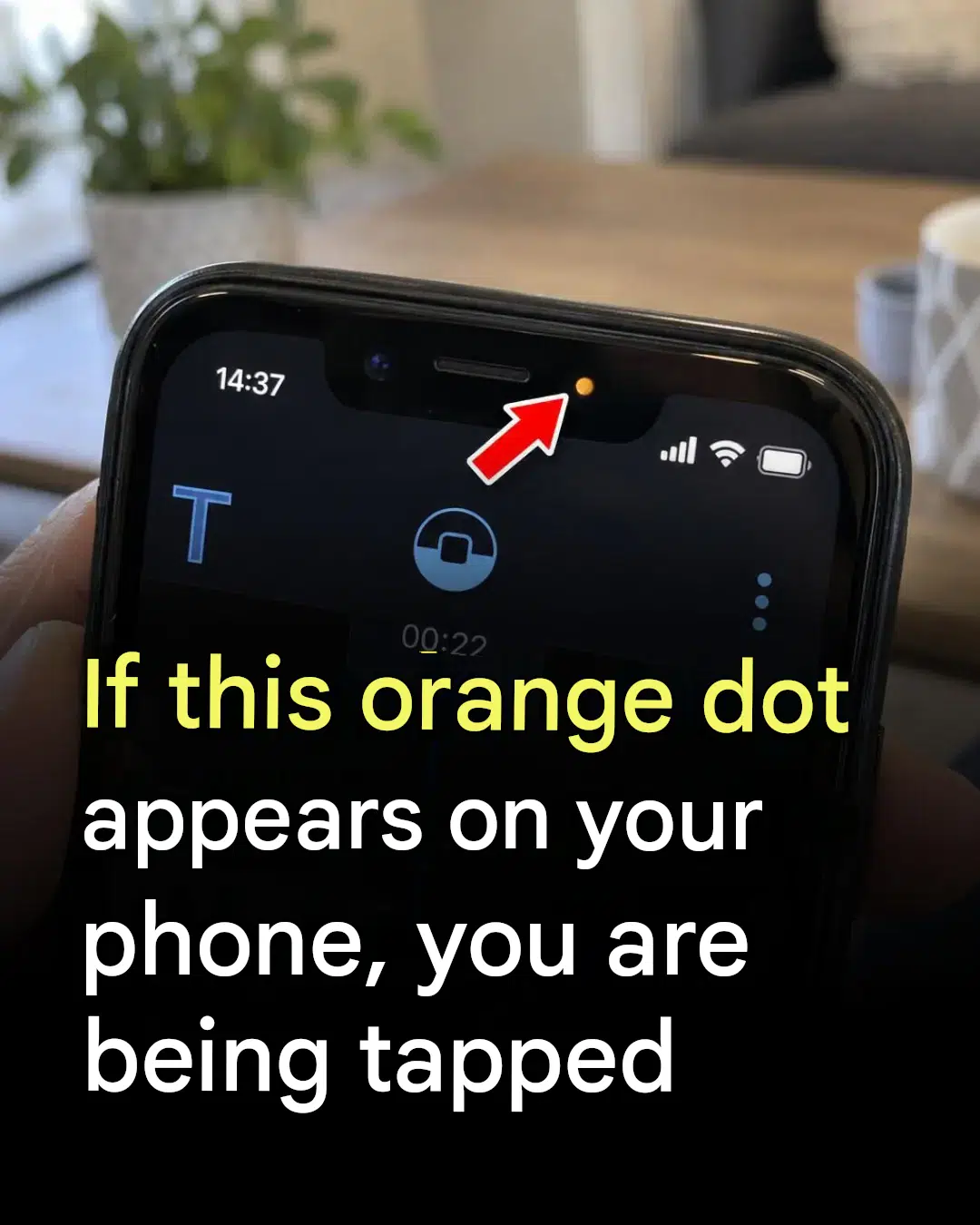
You may have already noticed it without really paying attention: a tiny orange dot flashing at the top of your iPhone screen. Discreet, almost invisible, it often goes unnoticed in everyday use. And yet, this little symbol reveals a lot about what’s happening behind the scenes of your phone. What we’re about to reveal will likely change the way you look at your smartphone.
What exactly is this orange dot?
Since iOS 14, Apple has integrated a system of visual indicators directly into the iPhone’s status bar. This orange—or sometimes green—dot lights up automatically when an app is using your microphone or camera. Simple, but remarkably effective.
The orange dot indicates that the microphone is active. The green dot indicates that the camera is in use. These two indicator lights operate in real time, without you needing to do anything.
It’s a bit like a little digital bodyguard whispering to you: “Be careful, someone is listening right now.”
Why this information changes everything
Before iOS 14, it was virtually impossible to know if an app was secretly accessing your microphone in the background. Some apps—social networks, voice assistants, messaging tools—can activate the microphone without it always being visible or justified.
This orange dot allows you to regain control . If you notice it lights up when you’re not using any voice applications, it’s time to check which apps have access to your microphone.
Go to Settings > Privacy and security > Microphone : you’ll see the full list of allowed apps. Regularly checking this menu is a simple way to protect your privacy every day.
How can I check which app is using the microphone?
Good news: Apple has thought of that too. By swiping down from the top right corner of the screen to open Control Center , you can see directly which app has recently used your microphone or camera. Its name is displayed at the top, clearly identifiable.
Convenient, isn’t it? In just a few seconds, you know exactly which app is involved.
The right reflexes to adopt
Don’t panic, this orange dot isn’t necessarily a sign of malicious intrusion. It also lights up naturally when you make a call, record a voice memo, or use Siri. That’s its primary purpose: to inform you, not to alarm you.
However, if you see it activate unexpectedly, here are some useful steps to take:
– Revoke unnecessary permissions in settings – Regularly update your apps and iOS – Delete apps you no longer use
These small digital habits make a real difference in the long run.
Your iPhone is constantly talking to you — you just need to learn how to listen to it.
